D2D Client Demo App
Overview

Manual
Note
If you run the RAPI demo application on a host connected to a real coffee machine you can skip to point 3
To enable communication between the RAPI and the machine simulation a virtual COM port is required. This is done by executing
socat -d -d pty,raw,echo=0,link=/tmp/ttyRAPI0 pty,raw,echo=0,link=/tmp/ttyRAPI1
After setting up the COM ports start the
RapiSerialClienteither over QtCreator or command line with the COM port from the command above and the path to the configs sd card directory
/RapiSerialClient -c /tmp/ttyRAPI1 ${DIR_NOVIGO}/Config/BW4/SdCard/
Goto
System -> Machine Configuration, disable: payment system and enable: serial interface
Power
OFFmachine and turn itONagainOn your PC open the RapiSerialClientDemo windows application, enter the COM port to which the coffee machine is connected and click on Open (To find the available COM-ports on a Windows machine, hit Windows-S, then type “Device Manager”, select it and search for devices under “Ports (COM & LPT)” or use the file from the socat command above). The default baud rate is 115200 and works for the BW4 and the BW4c. For the BW4neo select 9600 baud in the drop-down prior to opening the serial port.
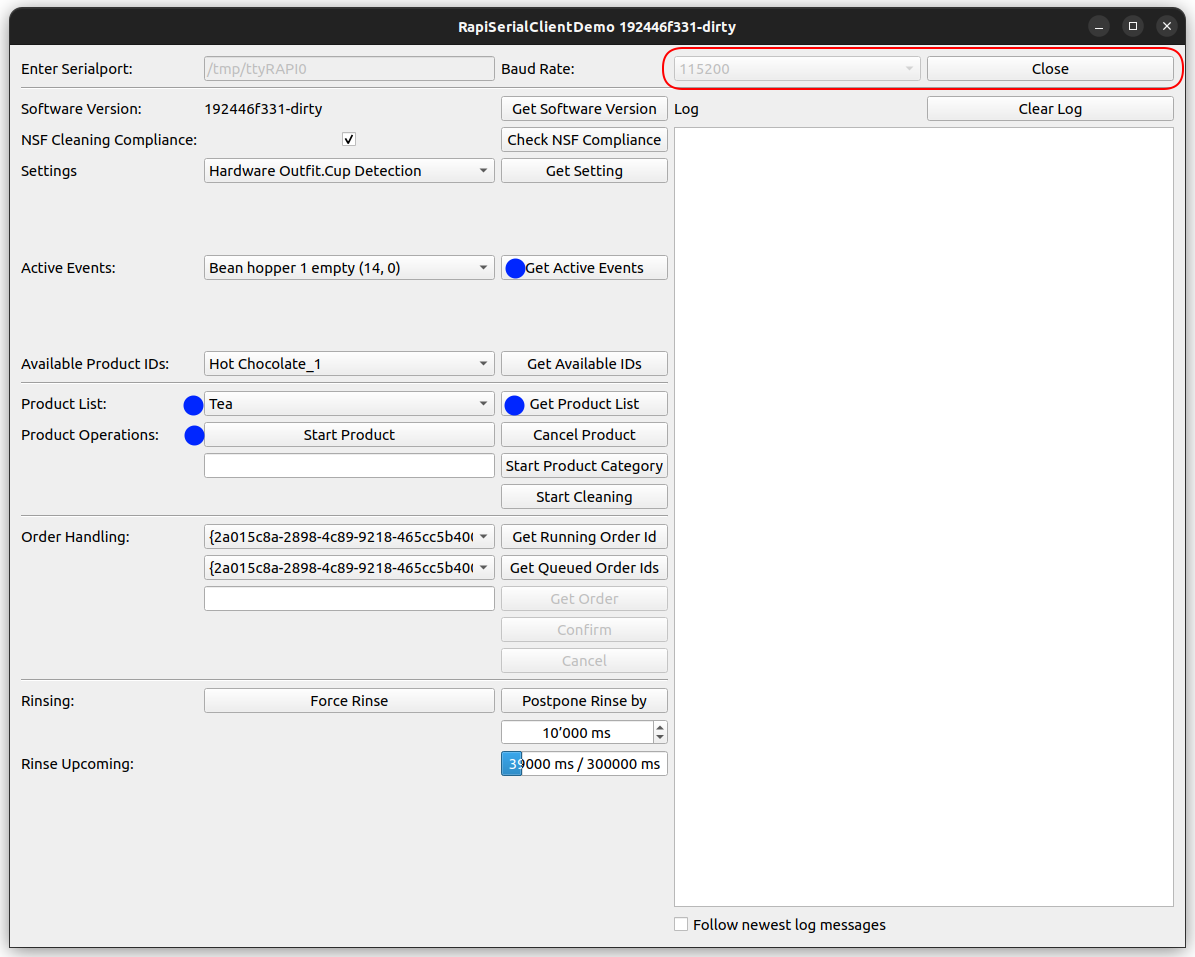
Click on Get Product List to get a list of all configured product IDs
Click on Get Active Events to get a list of all status messages that are currently visible on the coffee machine GUI
Choose the desired product from the Product List
Click on the Start Product button to start pouring the product
Use right-click to copy the selected UUID from the Combo box to the Edit Field.

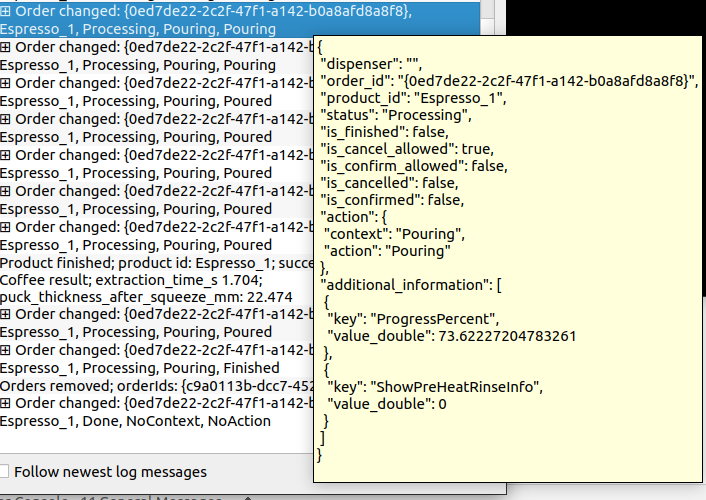
In the log section of the window of the serial client you will continuously see incoming events such as error messages or “Product Finished” messages. Move your mouse pointer over the order information logs to open a tooltip and view the complete order data.